Question page
A question page presents one focused step in a multi-step form. Several variants adapt the shape: section titles, progress indicators, supporting context, expandable help, and grouped fields.
Types of question pages
Ask one question at a time
The default question page. One idea per page reduces cognitive load and keeps users moving through the flow.
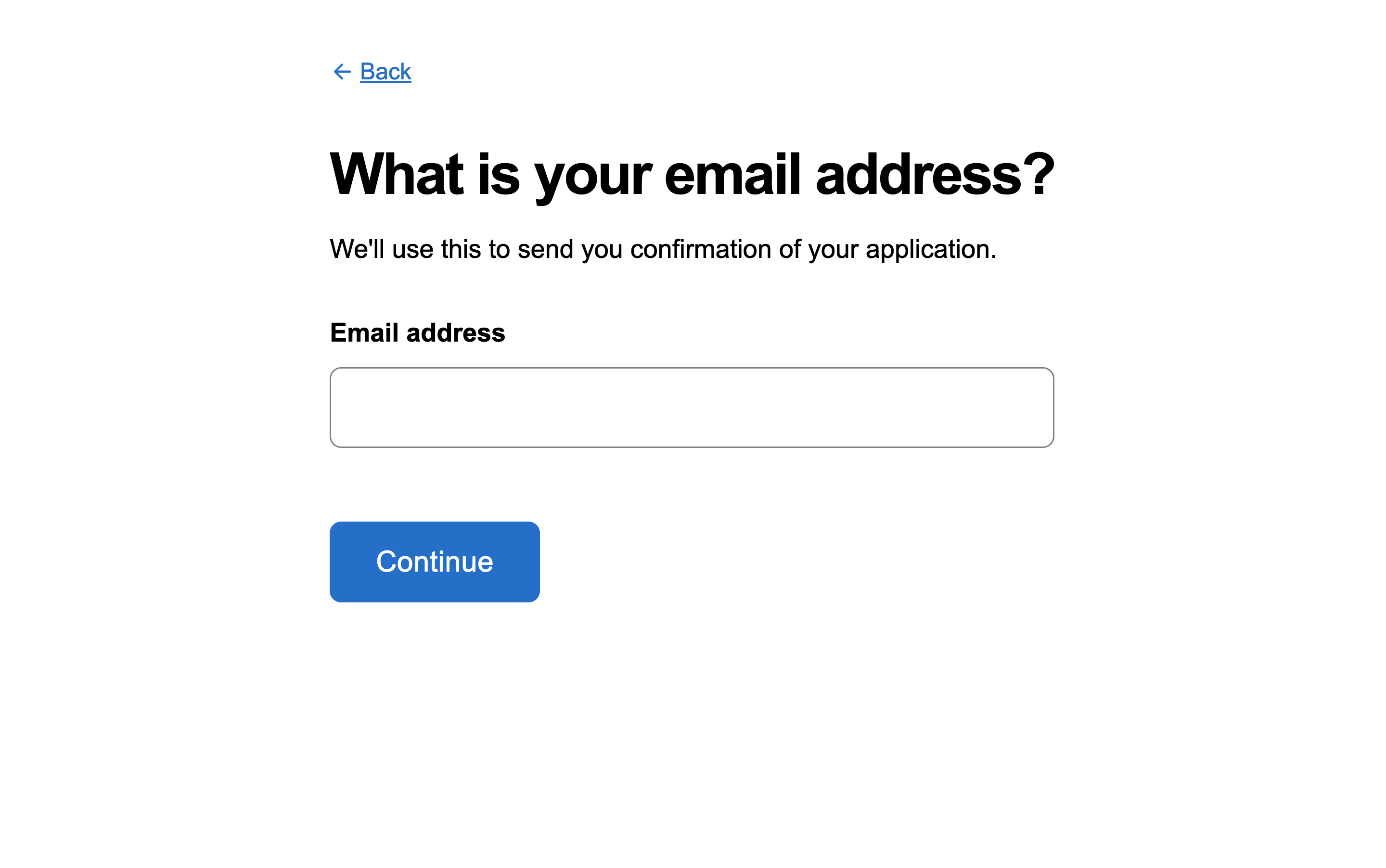
- Lead with a clear, plain-language question.
- Use a large label size to make the question prominent.
- Provide help text when the question could be ambiguous.
- Pair a primary action button with a back link.
Show a section title
Add a section title above the question to tell users which part of the form they are completing. Useful in multi-section forms divided into logical groups like “Personal information” or “Employment history.”
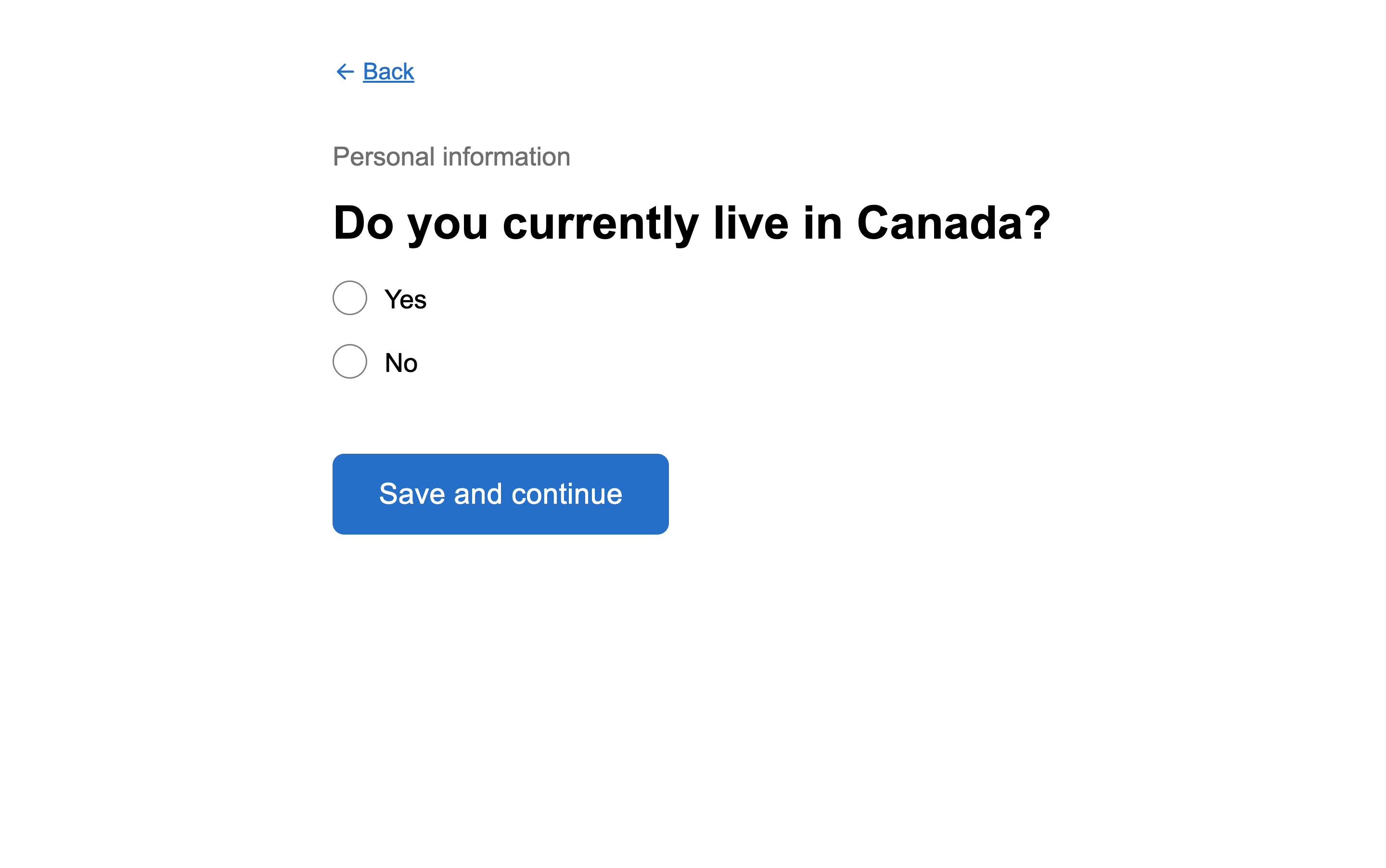
- Use a subdued text color so the section title sits above the question without competing with it.
- Keep the title concise and descriptive.
- Maintain consistent spacing between back link, section title, and question across the form.
Show a progress indicator
Show progress to help users understand how far they are through the form. Use “Question X of Y” for single-question pages, or “Step X of Y” when grouping multiple related questions into sections.
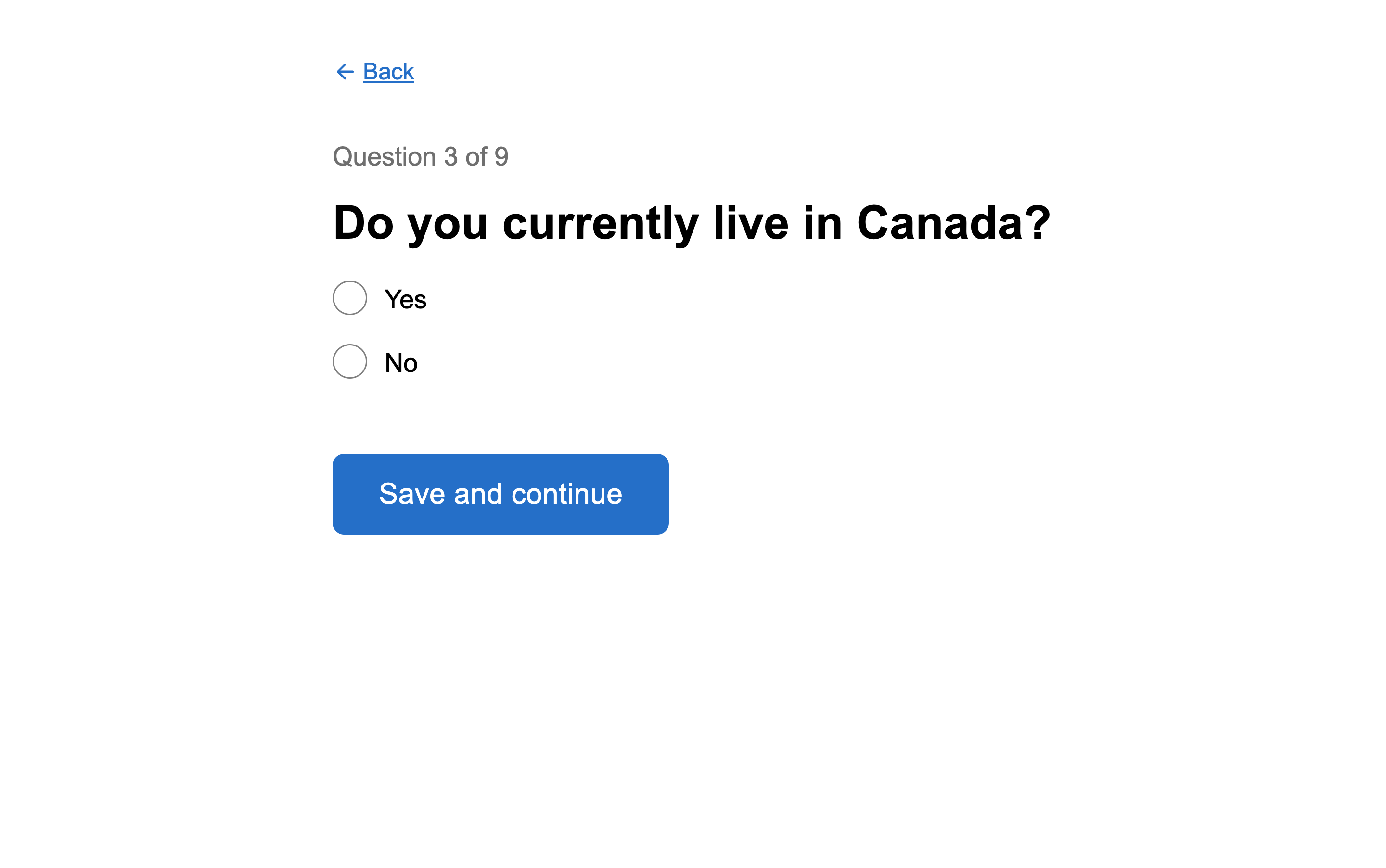
- Display progress consistently across the form (“Question X of Y” for single-question pages, “Step X of Y” for multi-question sections).
- Use a subdued text color so the indicator sits above the question.
- Position above the question, below the back link.
For step-based progress when grouping multiple questions into sections, see the progress-indicator-multi variant on GitHub.
Give background information before asking
Provide explanatory context before a question when the question requires domain knowledge or terms that may need clarification.
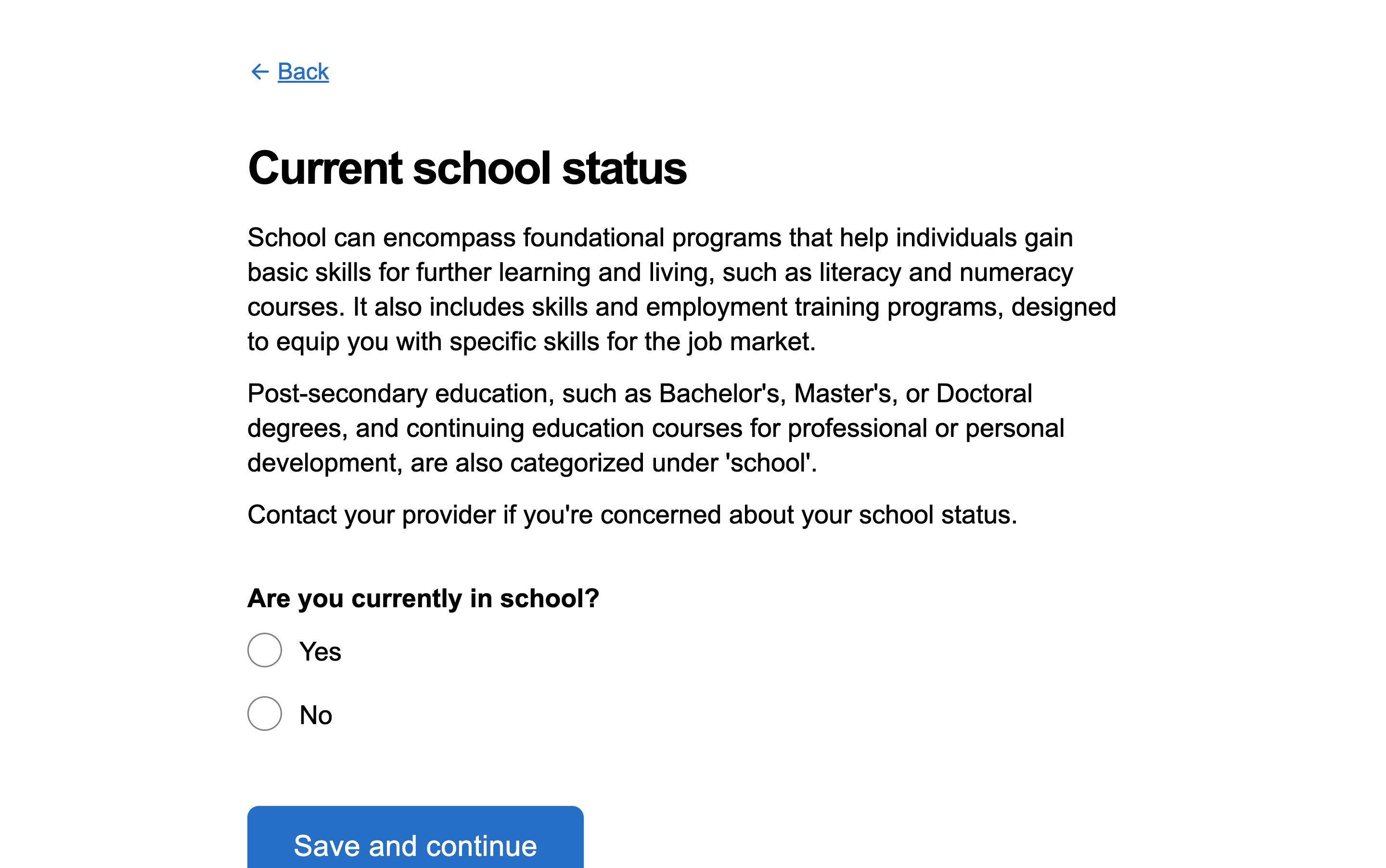
- Place context information before the question, not after.
- Use plain language citizens can understand.
- Suggest where users can get additional help if needed.
For an open-ended question with a long-answer textarea, the same pattern applies with a Details component for additional guidance. See the background-textarea variant on GitHub.
Reveal more information to help answer
Use the Details component to provide optional context that explains why a question is being asked, or that lists examples of qualifying items. The expandable shape keeps the form uncluttered for users who do not need the help.
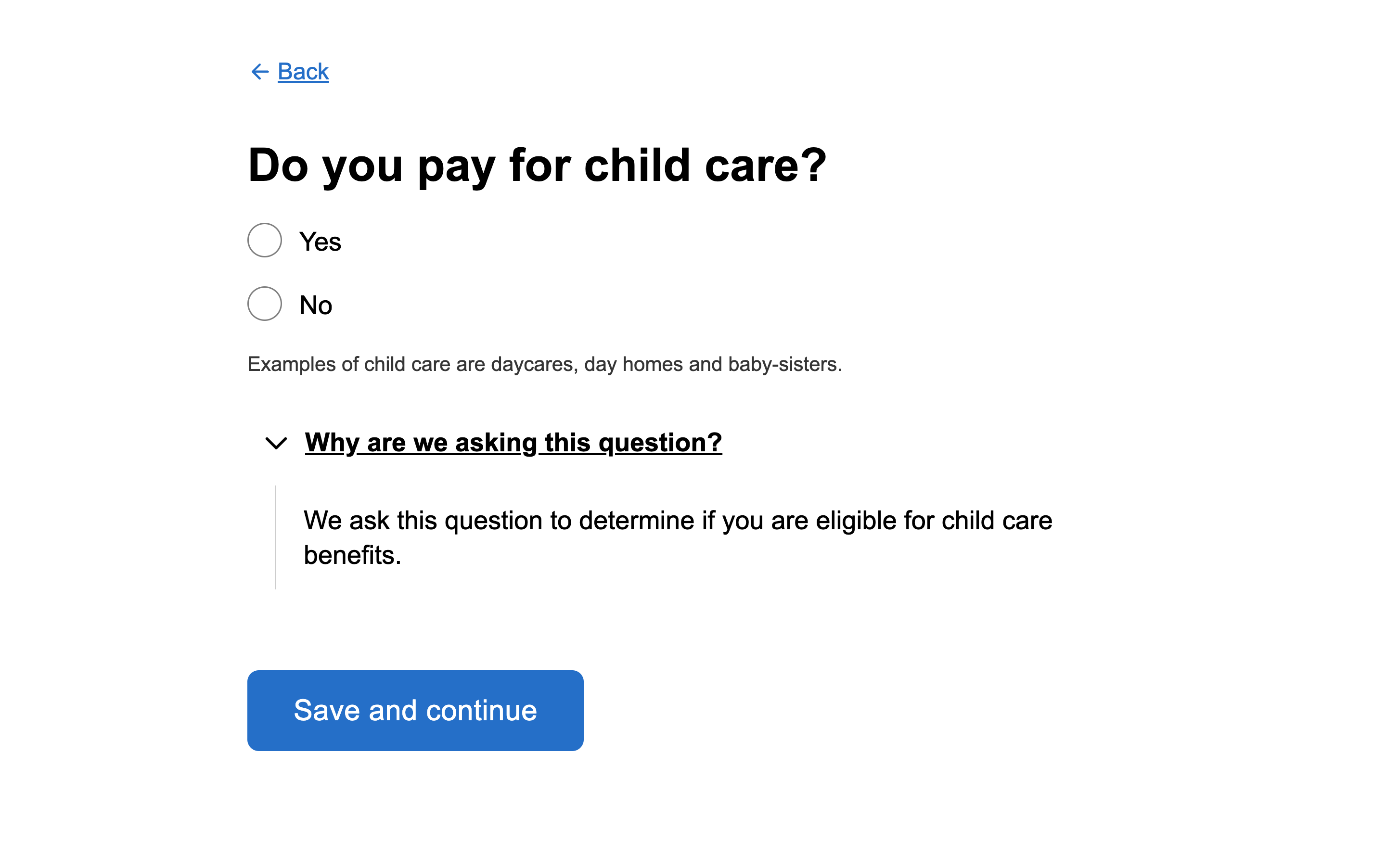
- Place the Details component after the question input.
- Phrase the Details heading as a question (e.g. “Why are we asking this question?”) so users know it provides clarification.
- Keep the expanded content concise, scannable, and easy to act on.
When the help content is a list of examples (what to include, what to exclude), structure the expanded content with clear headings. See the help-list variant on GitHub.
Group related questions on one page
When fields are tightly related and harder to answer in isolation, group them on one page. The typical case is collecting an address, where street, town, province, and postal code naturally belong together.
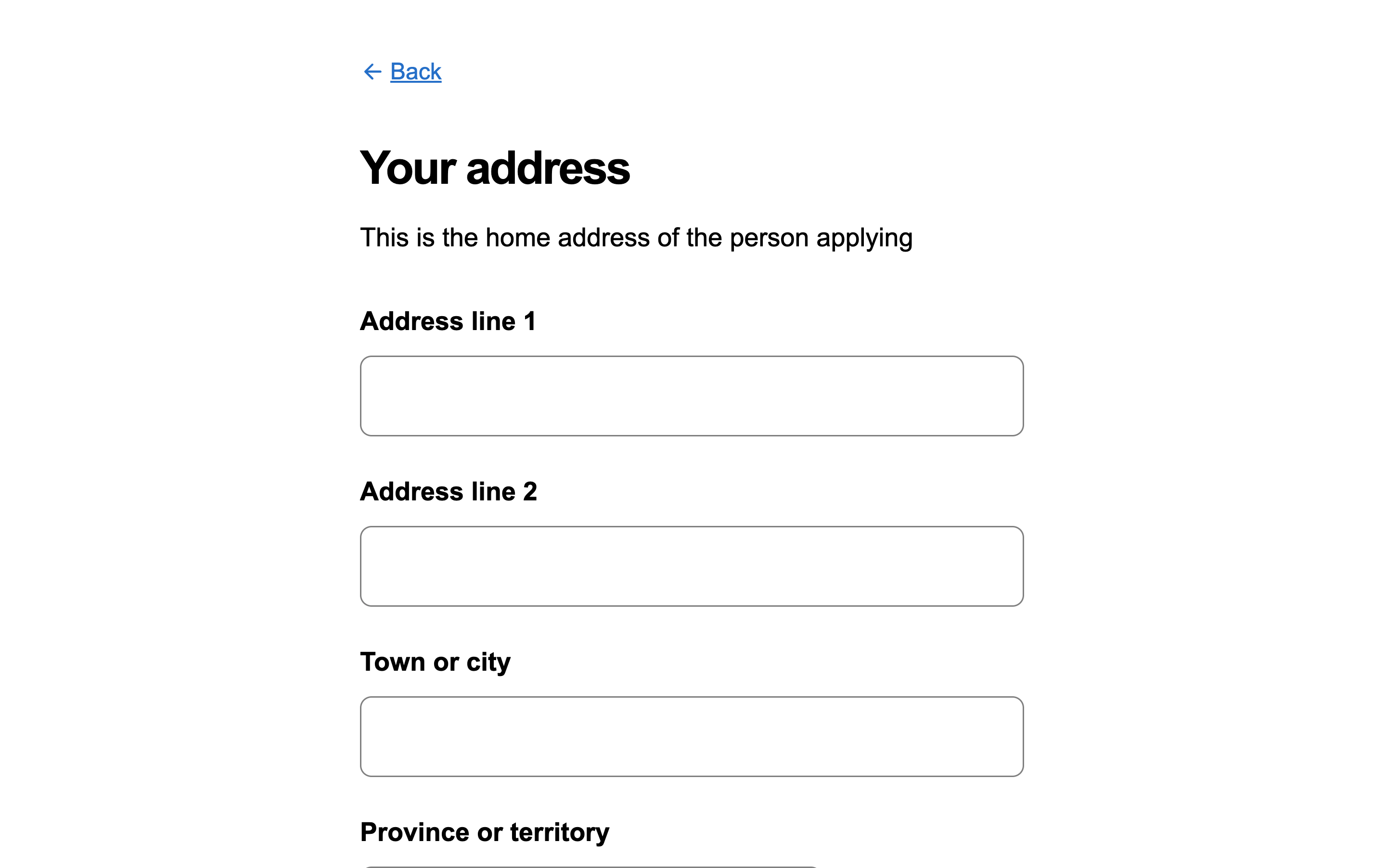
- Group fields only when the whole group answers one logical question. Do not group unrelated questions just to fit them on one page.
- Use clear, descriptive labels per field.
- Add a section title above the group to provide context.
- Use input widths appropriate to the expected content (postal code narrower than street).
When to use
Use this pattern when:
- Building multi-step forms or wizards where users complete one decision at a time
- Asking for information that requires focused attention or careful consideration
- The form has branching logic based on previous answers
- You want to reduce errors and improve mobile and accessibility outcomes
Considerations
- Each page should contain one idea: one question, one decision, or one logically grouped set of fields
- Include a back link so users can revise previous answers
- Use a large label size to make the question prominent
- Provide help text when wording could be ambiguous
- A clear primary action progresses the user; a back link returns them
- Progress indicators are optional. Test the form without one before adding one.
- Consider adaptive questioning where subsequent questions depend on previous answers